

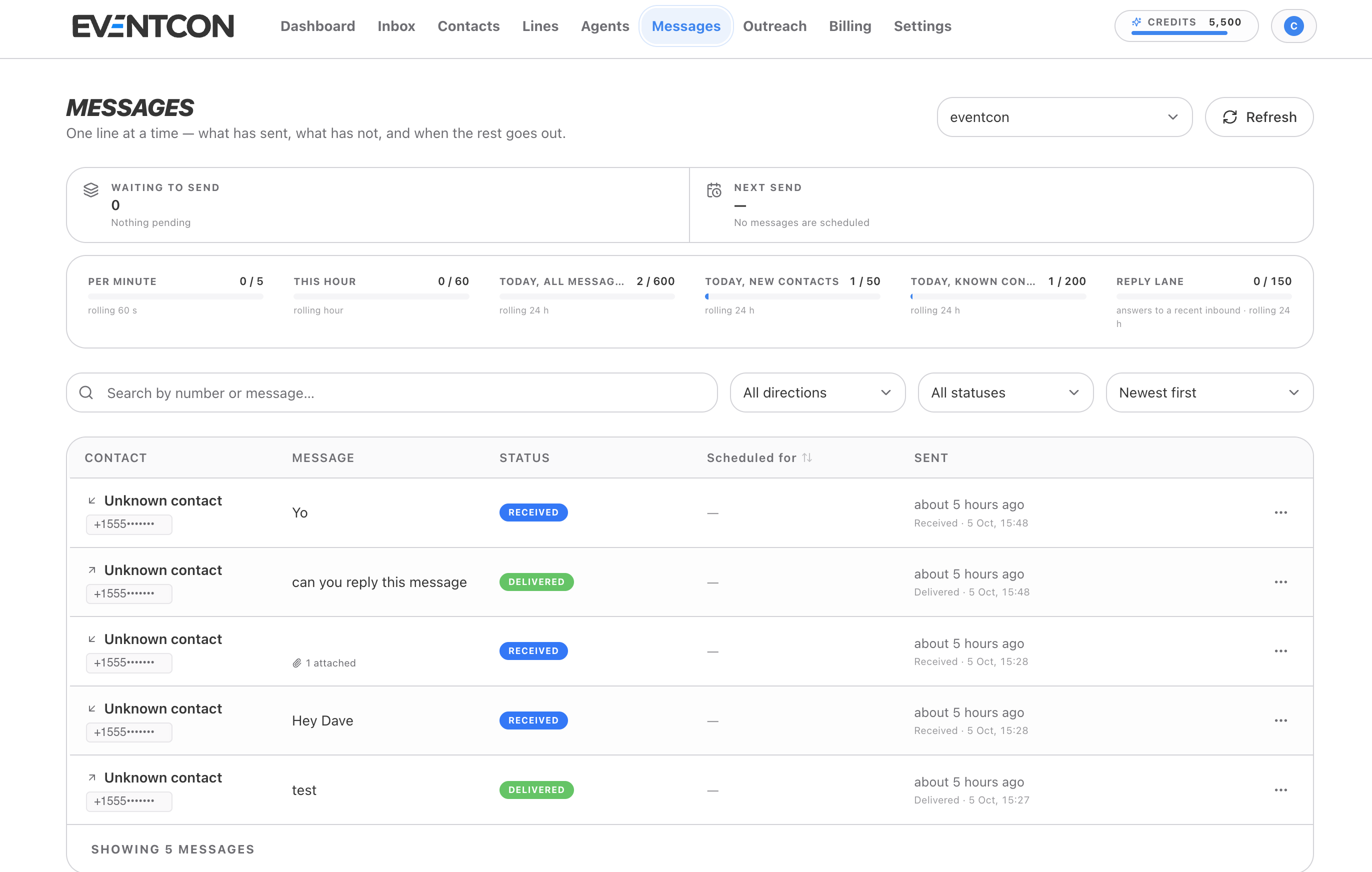
Pick a line
Use the line selector in the top-right corner to choose which line to view. Click Refresh to load the latest status.Queue
Sending limits (smart queueing)
To keep your line healthy, EventCon paces how fast each line sends. It doesn’t fire everything at once, which is what gets numbers flagged. Messages over a limit aren’t dropped. They wait in the queue and go out as soon as there’s room. Each meter shows used / limit for its window:
The Reply lane has its own allowance, so replies to people who just texted you aren’t stuck behind a big outreach campaign.
Limits depend on the line type. A Two-Way line can start conversations with up to 50 new contacts a day, and a Shared line with up to 15. An Inbound line can’t start conversations at all. “Rolling” means the window moves with time, so capacity frees up gradually as older messages age out. It doesn’t all reset at midnight.
Message log
Below the meters is every message on the line, newest first. Search and filter:- Search by number or message… finds a specific person or text.
- All directions filters to inbound (received) or outbound (sent) messages.
- All statuses filters by delivery status.
- Newest first changes the sort order.
Use the ⋯ menu on a row for more actions on that message.