

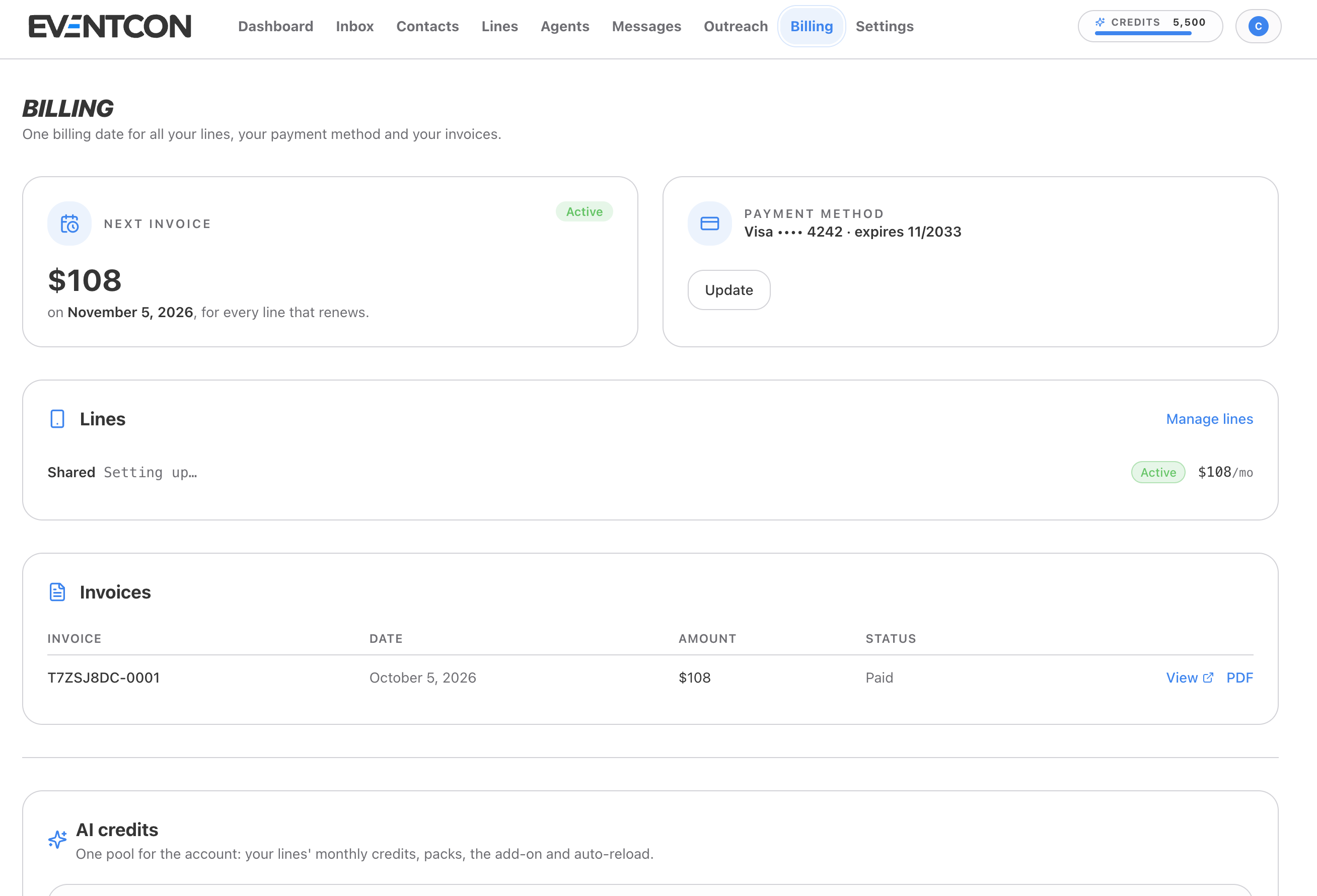
Next invoice
Shows the amount and date of your next charge, for example $108 on November 5, 2026, for every line that renews. All your lines share one billing date, so you get one invoice instead of one per line. The Active badge confirms your account is in good standing.Payment method
Shows the card on file, for example Visa •••• 4242 · expires 11/2033. To change it, click Update and enter the new card details.Lines
Lists every line you pay for, with its type, status, and monthly price.
Click Manage lines to go to Lines, where you can buy more lines or cancel one.
Invoices
Every charge appears in Invoices with its number, date, amount, and status, for example Paid.- Click View to open the invoice online.
- Click PDF to download it for your records or your accountant.
AI credits
The bottom of the page is where you check your credit balance, buy credit packs, set a monthly add-on, and turn on auto-reload. See AI credits.Common tasks
Add another line
Add another line
Go to Lines (or click Manage lines) and buy a line. It joins your existing billing date.
Cancel a line
Cancel a line
Each line is its own plan. Cancel it from Lines, and your other lines keep running.
Get a copy of an invoice
Get a copy of an invoice
In Invoices, click PDF next to the invoice you need.
Questions about a charge
Questions about a charge
Email support@eventcon.ai with the invoice number.